360 Audit Hub: Complete HubSpot Performance Analysis
Welcome to 360 Audit Hub
Your intelligent HubSpot audit and optimization agent.
360 Audit Hub helps you identify issues, risks, and optimization opportunities across your HubSpot CRM. From contacts and deals to workflows, marketing, and sales processes, the app gives you a detailed view of what's working and what needs attention.
With AI-powered insights and automated audits, you can understand your CRM health and take action faster.
Before You Get Started
Before running your first audit, make sure:
- You have access to your HubSpot account
- You have the required permissions
- 360 Audit Hub is installed in your HubSpot account
- You have access to the areas you want to audit
Supported Audit Areas
360 Audit Hub can audit areas such as:
- Contacts
- Companies
- Deals
- Tickets
- Sales pipelines
- Marketing activities
- Workflows
- Properties
- Data quality
- User activity
- CRM configuration
How to Install 360 Audit Hub
Step 1: Find 360 AuditHub in HubSpot Marketplace
Go to the HubSpot App Marketplace and search for 360 AuditHub.
Step 2: Install the App
Click on Install App.
Step 3: Select Your HubSpot Account
Choose the HubSpot account you want to connect with 360 AuditHub.
Step 4: Review Permissions
Review the permissions required by the app and click Connect App.
Step 5: Complete Installation
Once connected, 360 AuditHub will be available in your HubSpot account.
Getting Started With Your First Audit
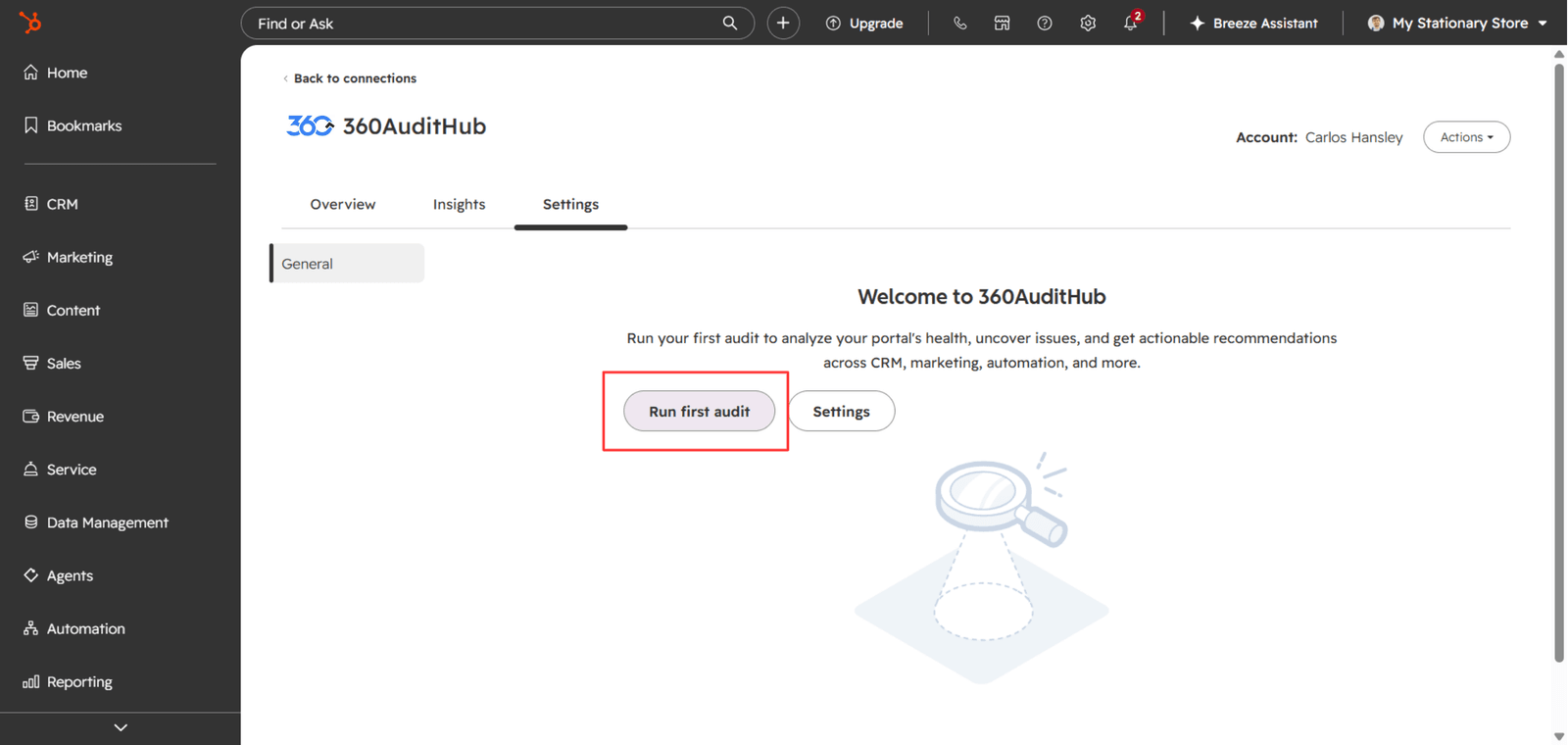
After installation, open 360 Audit Hub from your HubSpot account in the Connected Apps Section.
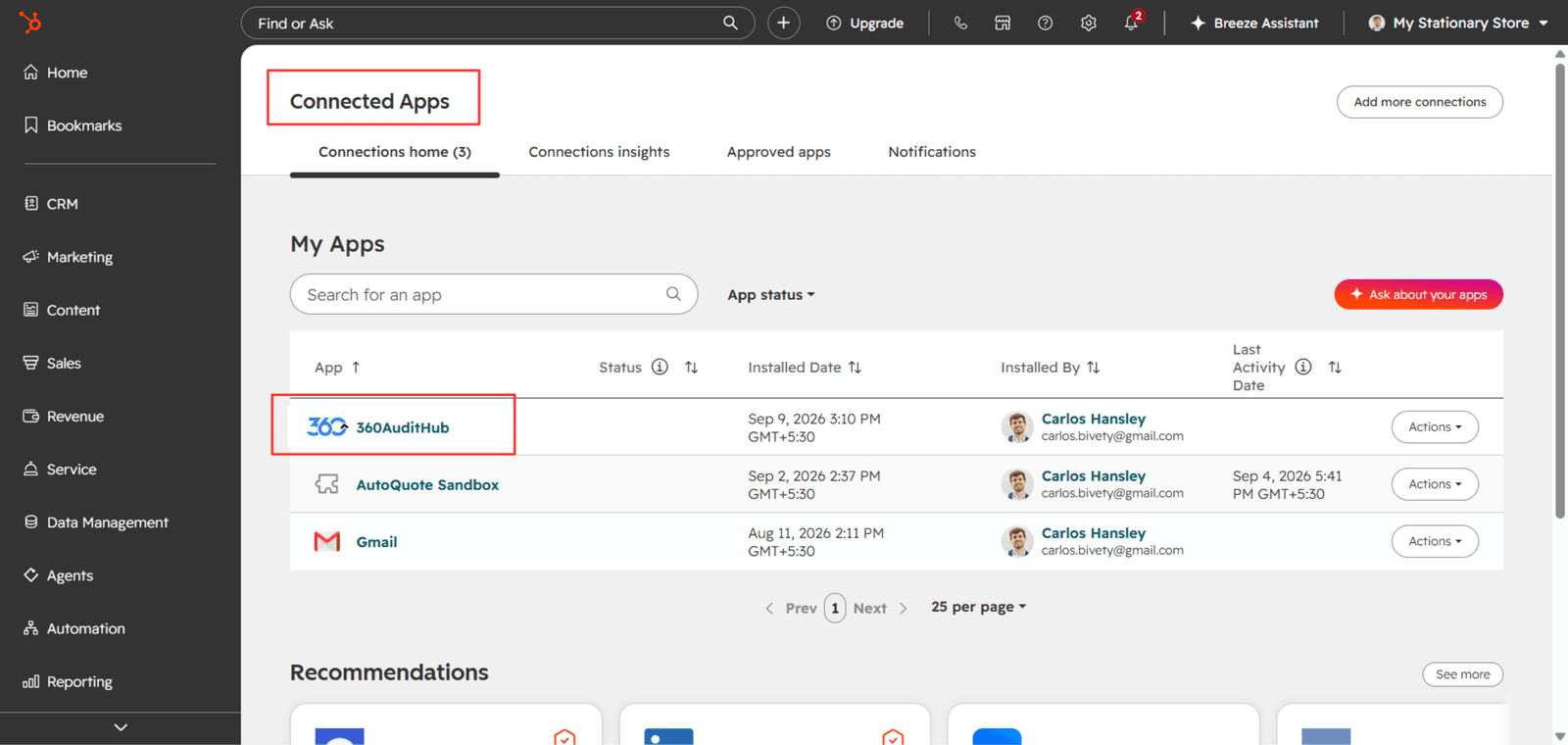
Go to Setting Tab.Click on “Run First Audit”
And the Process of Auditing your HubSpot CRM will start
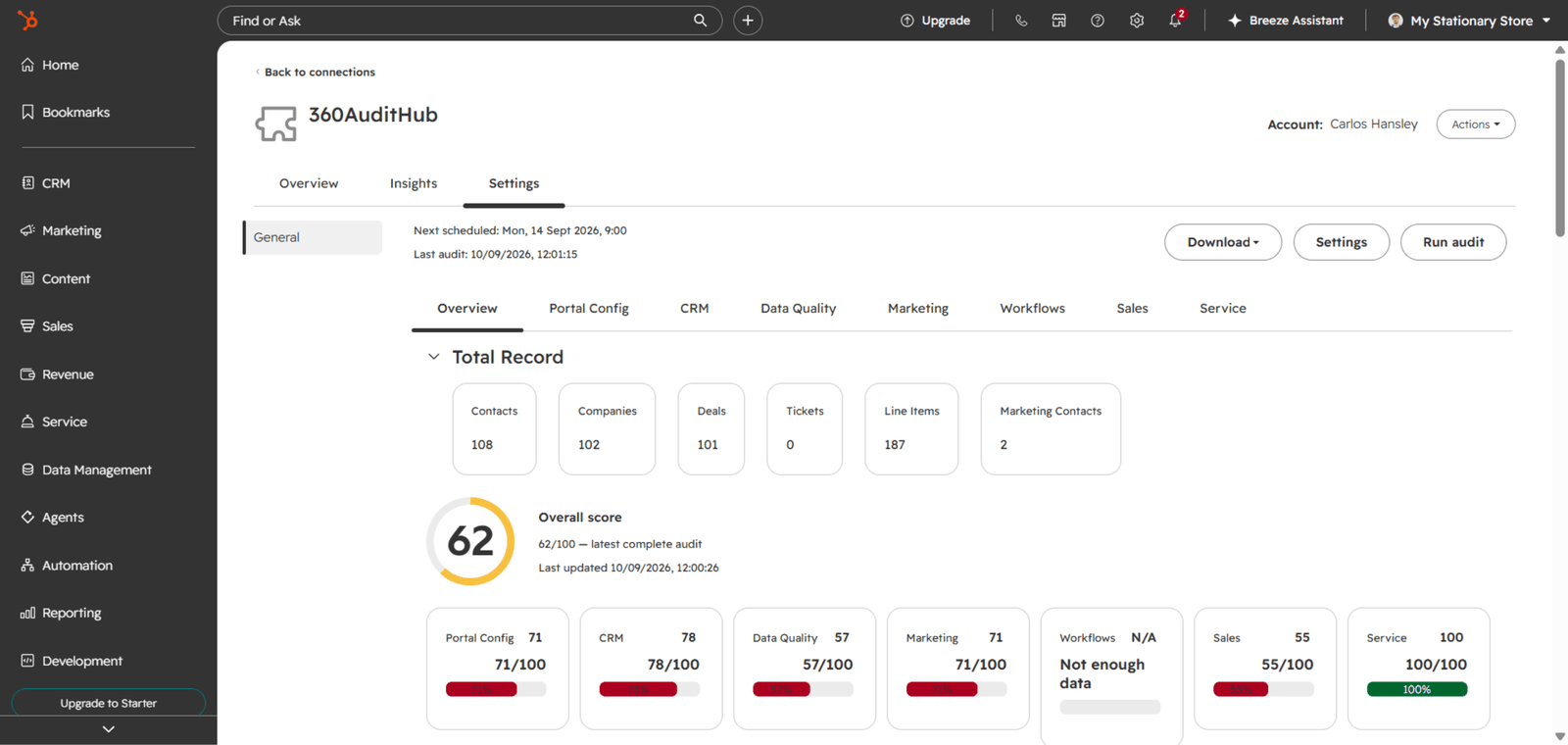
Understanding Your Audit Results
Once your audit is complete, you'll see a detailed overview of your CRM health.
Your results can be organized into:
Every finding in 360 Audit Hub is assigned one of four categories:
| Category | Meaning |
|---|---|
| 🔴 Critical | A serious CRM issue that may significantly affect data quality, processes, automation, or CRM performance. These issues should be addressed as a priority. |
| 🟠 Warning | An issue or potential risk that should be reviewed and addressed to improve your CRM setup and prevent future problems. |
| 🟢 Pass | The audited area meets the expected criteria and no issue was identified. |
| 🔵 Info | Informational insight or observation that may help you understand your CRM configuration or identify an optimization opportunity. |
Explore Issues in Detail
Click on any issue to view:
- Issue title
- Audit category
- Risk level
- Number of affected records
- Description of the issue
- Why the issue matters
- AI-powered recommendations
- Suggested next steps
This helps your team understand not just what is wrong, but also how to fix it.
Download Your Audit Report
Once your audit is complete, you can generate a detailed audit report.
Your report may include:
- Overall CRM health score
- Audit summary
- Issues by category
- Issues by risk level
- Detailed issue descriptions
- AI-powered recommendations
- Suggested next steps
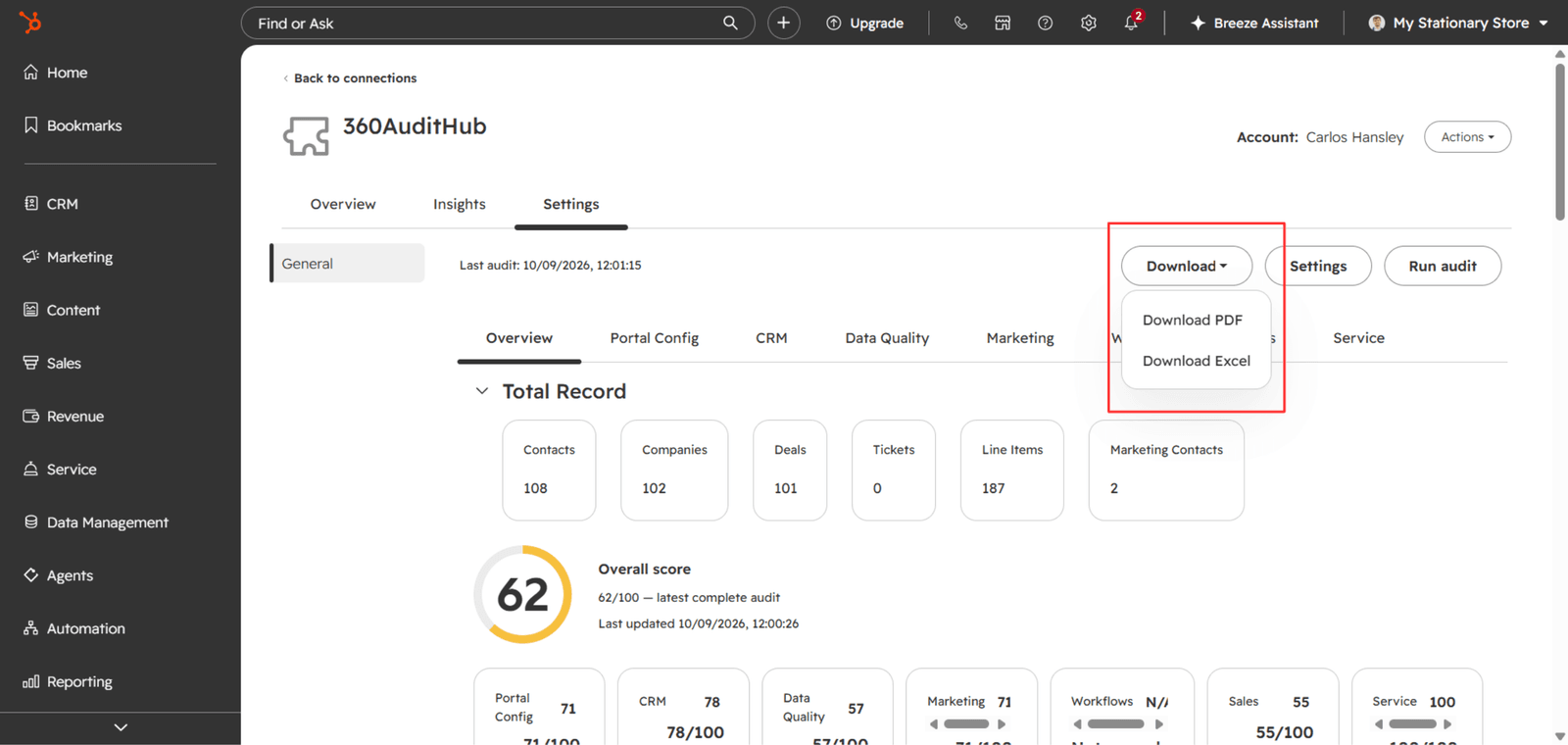
Click Download Report to save or share your audit results. You can export the report in 2 formats Excel or pdf
Schedule Regular Audits
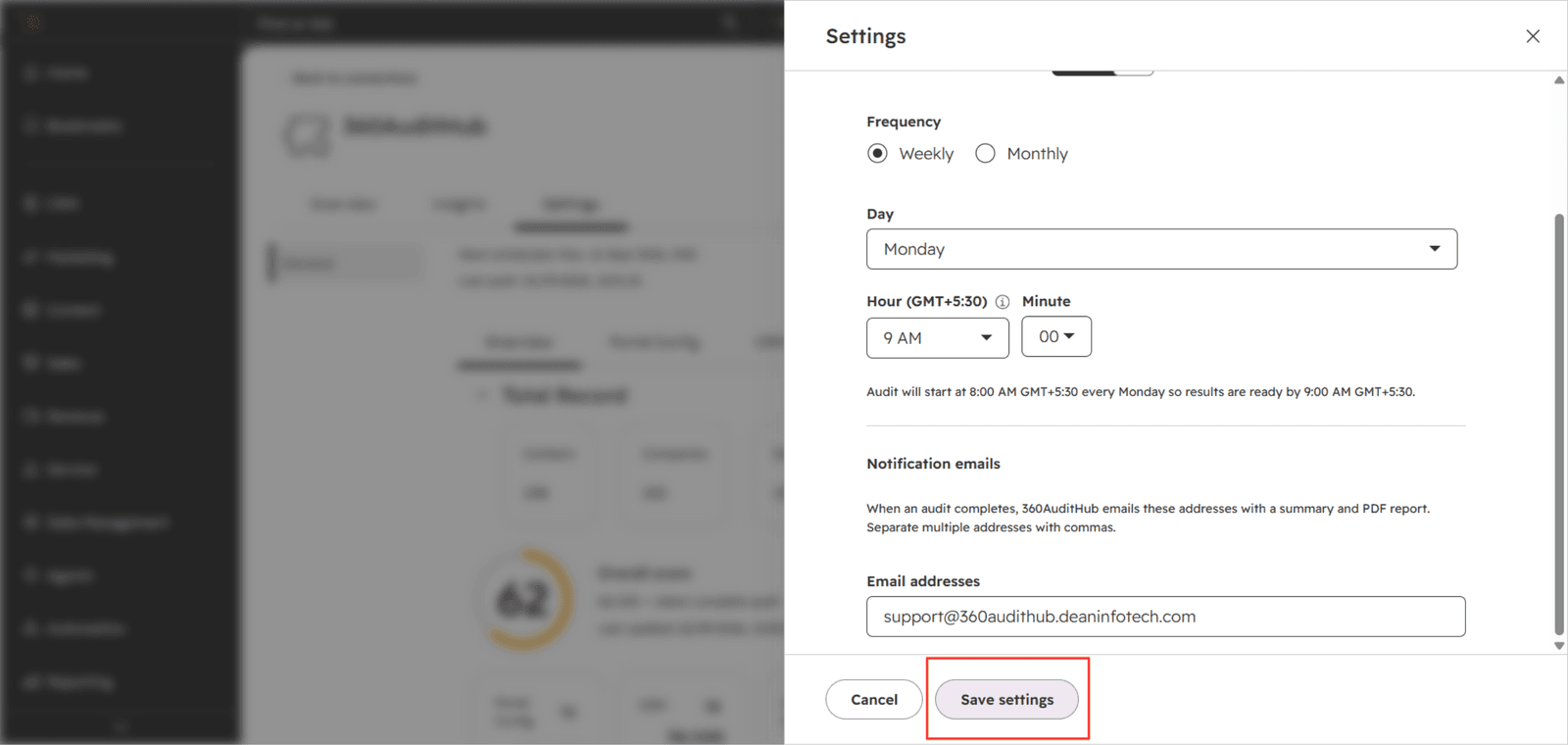
With 360 Audit Hub, you can schedule audits to run automatically.
How to Schedule an Audit
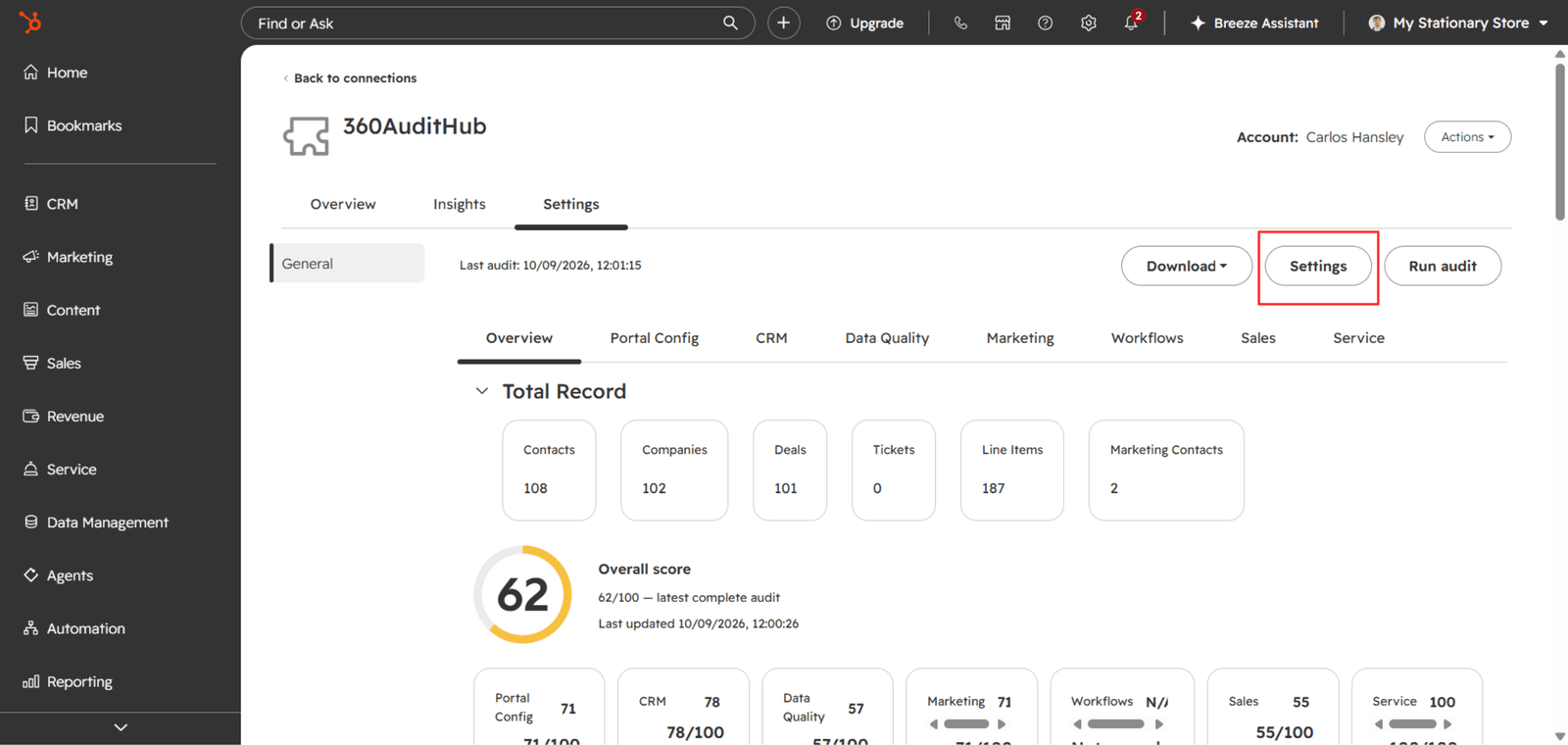
Go to Settings Tab
Enable Schedule Audit Toggle
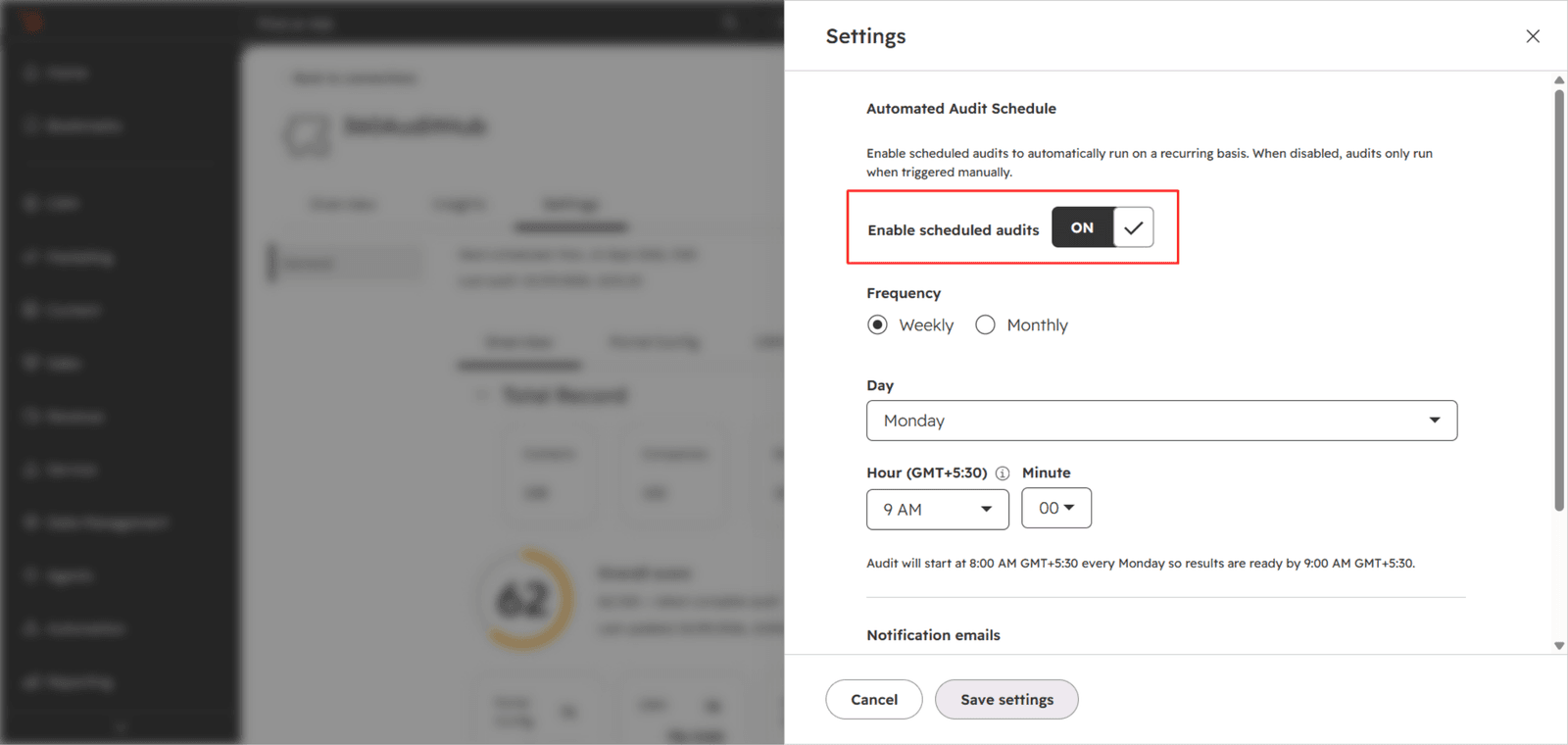
Select the Frequency how often you want the audit to run
Add the email to get the audit completion notification and exported file
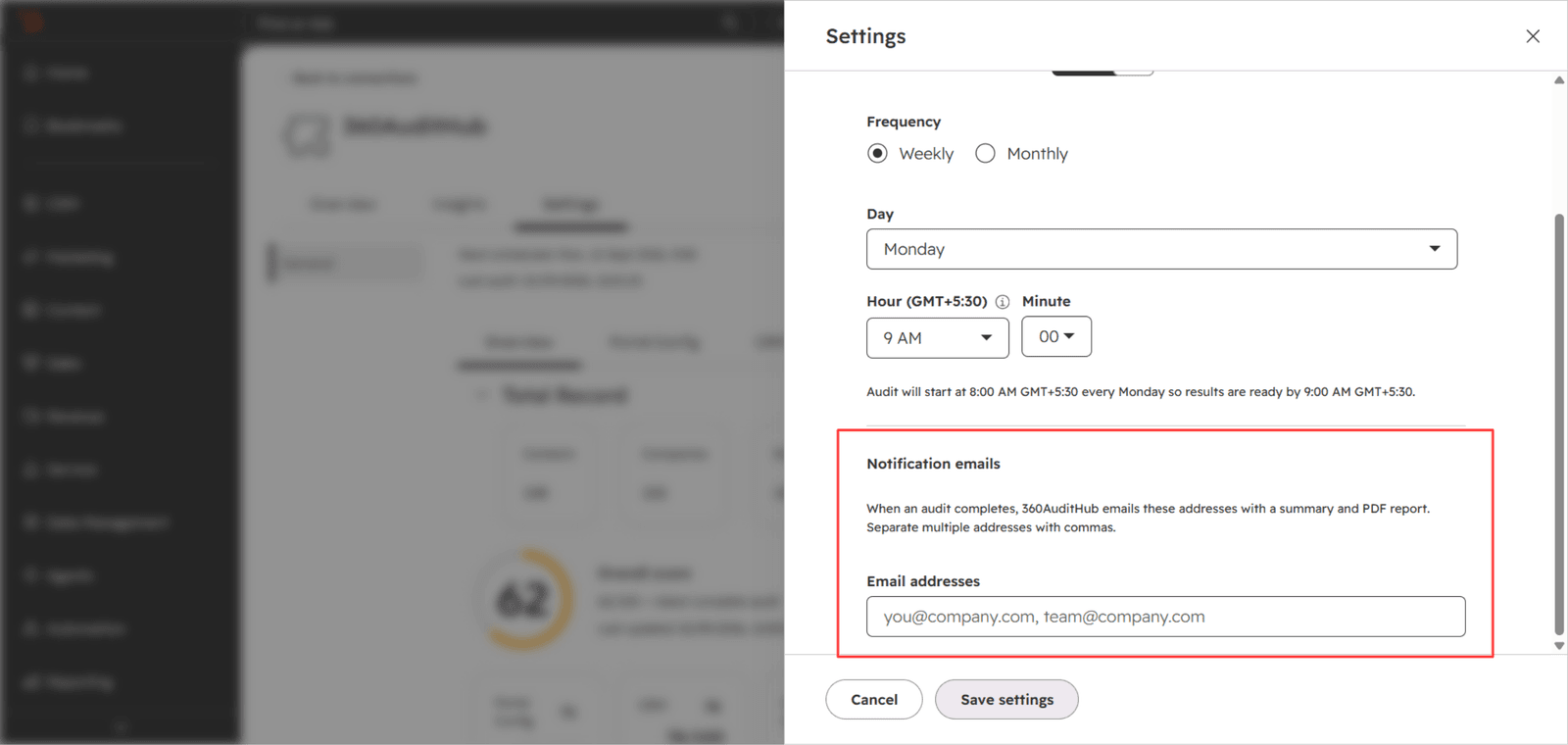
Click Save Setting
Review Your Audit History
Go to Audit History to view your previous audits.
You can compare audits to understand:
- Whether your CRM health is improving
- Which issues have been resolved
- New issues that have appeared
- Changes in your CRM health score
This helps you track CRM improvement over time.
Need Help?
If you need help setting up or using 360 Audit Hub, our team is here to help.
You can also contact us for:
- Installation support
- Audit configuration
- Understanding audit results
- Technical issues
- Feature requests